Group Working - 2Dos
 Updated
by
Matt Besant
Updated
by
Matt Besant
Group Working is a feature of 2Dos that allows children sharing a device to work collaboratively on a single piece of work.
Group Working is a great way to promote co-operation, communication and joint problem-solving while ensuring each child receives credit for their shared work. It is particularly useful where a school does not have enough devices for children to use Purple Mash independently and they have to share.
Below you will find guidance on how to enable group working, and how pupils can submit group work.
Enabling Group Working:
Teachers set the 2Do in the normal way. Once the 2Do has been set and the teacher is physically with the children, the teacher should go to the 2Dos area of the Purple Mash platform. There they will see the 2Do they have set.

A button labelled Enable Group Working will be available on the 2Do.
When the teacher clicks this button:
- The button dynamically changes to Group Working Enabled : [10-minute timer counting down].

- Children now have 10 minutes to log in to their devices and open the 2Do.
- The teacher can stop the grouping session by clicking the Group Working Enabled button.
- The teacher can restart the grouping session by clicking the button again.
Starting a 2Do With Group Working:
When a child opens a 2Do for which Group Working has been enabled, a modal appears with two options:
- I am working by myself
- I am working in a group
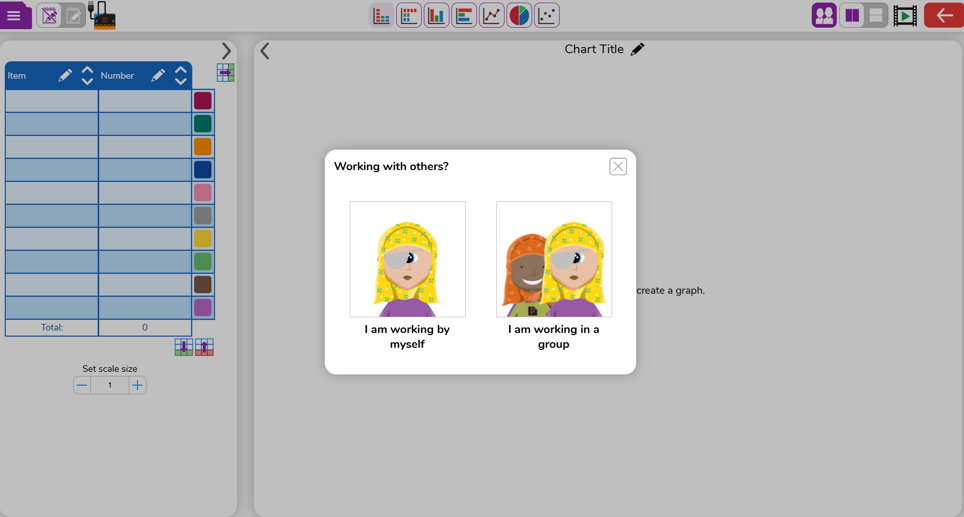
1. I am working by myself:
Children choosing to work alone proceed directly to the task. Their work behaves exactly like a standard individual 2Do.
Whilst grouping is enabled by the teacher if a child needs to form a group, they can do this by clicking the Group Working button in the top bar.

Clicking this guides the child through selecting other children to join their group, as described below.
2. I am working in a group:
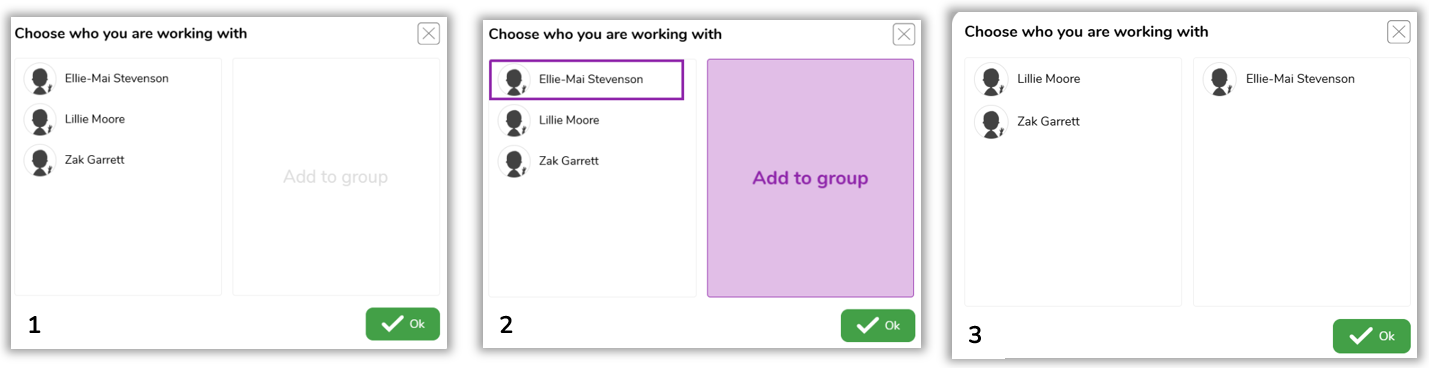
Children choosing to work in a group are guided through selecting other children to join their group.
Key points:
- Children may add one or more partners (up to a maximum group size of 6).
- Group members may only be selected from the children for whom the 2Do was set.
- The group works together at the same device.
Once the children are selected for the group, they can begin their work in the application or file.
Removing children from a group:
There may be occasions where a child needs to be removed from a group. This can be managed by children and teachers.
Children removing group members:
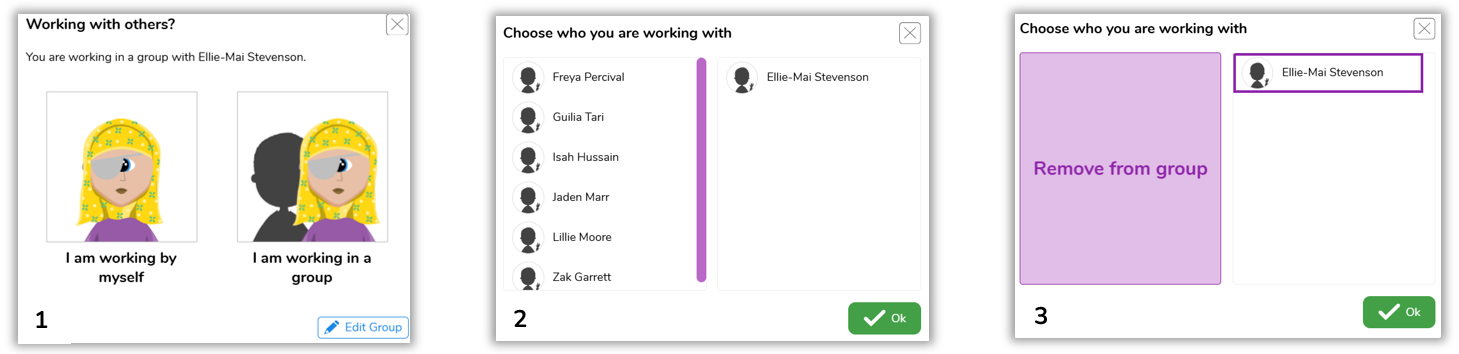
Children can remove members from their own group by clicking the Group Working button in the top bar.

Children are informed who is in their group. Clicking the Edit Group button guides them through the process of adding or removing children from the group.
Teachers removing group members or groups:
Teachers can also manage groups.
To do this, the teacher goes to the 2Dos area of Purple Mash. They will see the 2Do for which Group Working is enabled.

Clicking the More button opens a menu which contains an item called Manage Group Working.
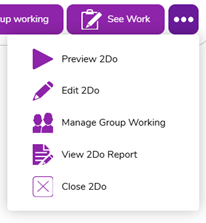
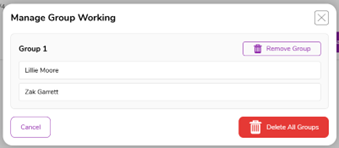
Clicking this item opens the Manage Group Working dialogue, which displays:
- All groups.
- All children within each group.
In this view, teachers can:
- Remove a child from a group (if more than two children are in that group, if only two children are in a group then the teacher will only have the option to remove the group).
- Remove a group entirely.
- Remove all groups, which would require all children to re-group.
Children who have been removed from a group - whether individually or because their group was removed - are able to regroup again with other available children.
Saving and submitting work:
When saving a file:
- A separate copy of the file is saved for each child in the group.
- Each child’s file is named with their name and the names of the other group members.
When handing in a file:
- Only the file for the logged-in child is handed in.
- Other children in the group must log in individually to hand in their work, at which point they can choose which file to hand in and can add their own comment.
- Alternatively, the teacher may force hand-in for children where a file has already been saved.

How teachers view group work:
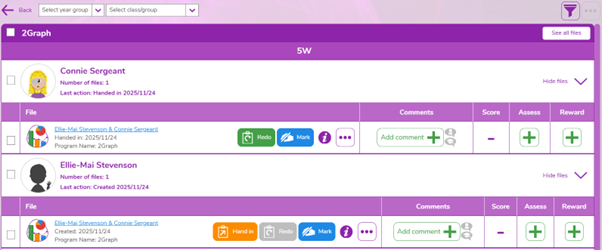
When viewing handed-in work, teachers will see:
- A file for each child.
- The file name for each file is the list of children who were grouped together.
Redoing Group Work
If a teacher sets a Redo, it is set for the individual child and their file. Redos are not set for other children in the group. Children can choose whether to complete the redo individually or collaboratively.
If you have any further questions about Group working, please contact support@2simple.com
