How do I print or export my pupil logins?
 Updated
by
Matt Besant
Updated
by
Matt Besant
Printing Pupil login cards for DotCom
- Log into DotCom
- Click on your avatar icon next to your name, and navigate to > Manage Users.

You can export login cards via the Pupils tab, to select individual pupils. However the recommended area to export login cards is the Classes tab, so that your export will be organised by class.
- Click on Classes on the left hand side.

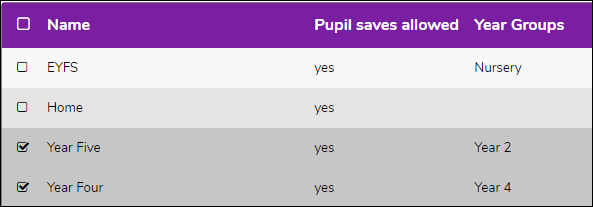
- Select the classes you want to print login cards for using the tick box on the left. You can click the tick box in the top left within the purple region to select all classes.
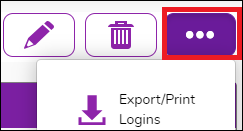
- On the right, click on the purple button (three dots), and then click on Export/Print Logins.
- Choose the Export type, and then click on Ok.

Ticking Include Staff will include the logins of any teachers assigned to the classes. We normally do not recommend ticking the Include Staff box on this section as staff passwords are not visible on login cards for security reasons. This feature is usually reserved for temporary staff login cards if a teacher has forgotten their password and cannot access a password reset link by email. For more information please see How to Reset Staff Passwords
If you have any questions about the above process, just contact us at support@2simple.com & we will be happy to assist.
