Why can't I take pictures within Mashcams?
 Updated
by
Matt Besant
Updated
by
Matt Besant
For E-Safety & GDPR reasons, Purple Mash admins can enable or disable the use of the device's camera within Mashcams.
To enable the setting, first log in to Purple Mash as an administrator.
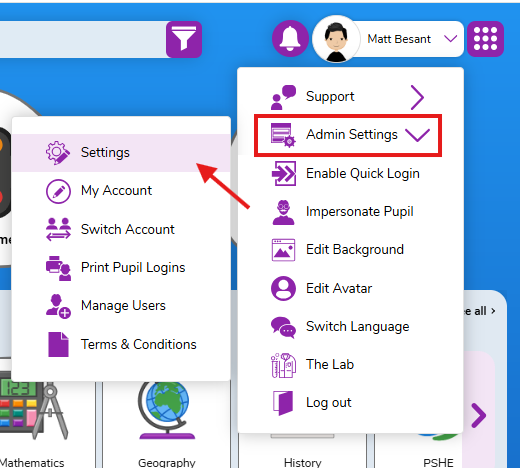
On the homepage, click on your avatar, then navigate to Admin Settings> Settings (as below).
Select the "E-Safety" tab, then ensure that there is a tick in the checkbox next to the option "Allow pupils to access the camera on their device" shown below:
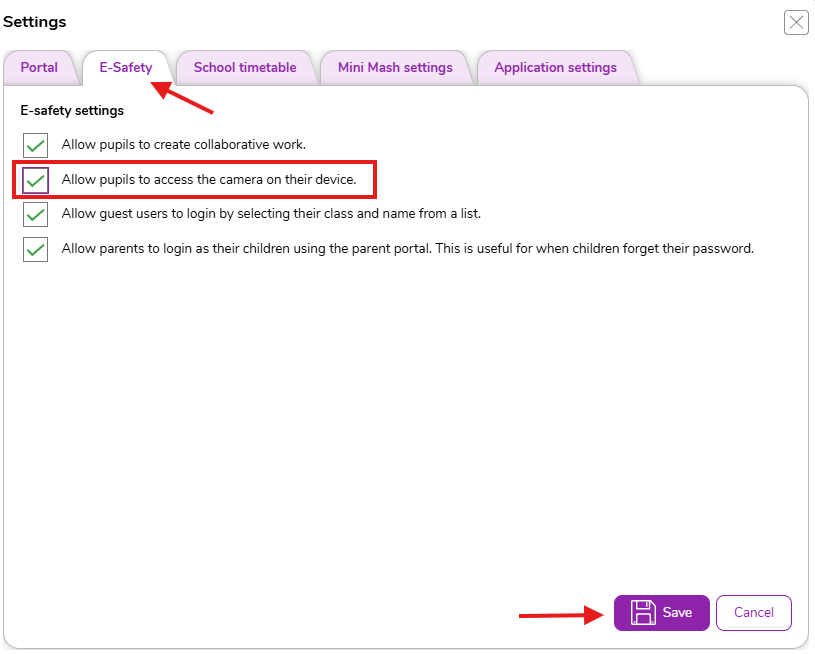
Once you have ticked the box, click Save.
Once you have saved the changes, for the changes to take full effect, all logged in users must log out and then log back in again.